The original IBM PC Compatible computers of the 1980's used a firmware standard known as the BIOS, which stands for "Basic Input/Output System." Despite its age, many computers of today still use this ancient system, and due to its ubiquity, "the BIOS" has become synonymous with any low-level configuration utility. The BIOS has its fair share of limitations though, since it runs in 16-bit processor mode and can only address about 1 MB of memory.
But there is a newer alternative: EFI, which stands for "Extensible Firmware Interface." It replaces the aging BIOS and provides many new features. Not only does it run in 32-bit or 64-bit mode, but it also allows rich mouse-based interfaces, modular extensibility, and support for OS-independent device drivers, to name a few.
Current EFI Implementations
There are three popular EFI implementations available today: Insyde H2O, MSI Click BIOS, and Apple's Mac firmware.
Insyde H2O
This is probably the most common consumer-grade PC firmware, which is found in many new laptops. However, it's more of a "bridge" between the older BIOS and the newer EFI; it runs many system functions in BIOS mode, and provides a very basic "BIOS-like" setup utility.
MSI Click BIOS
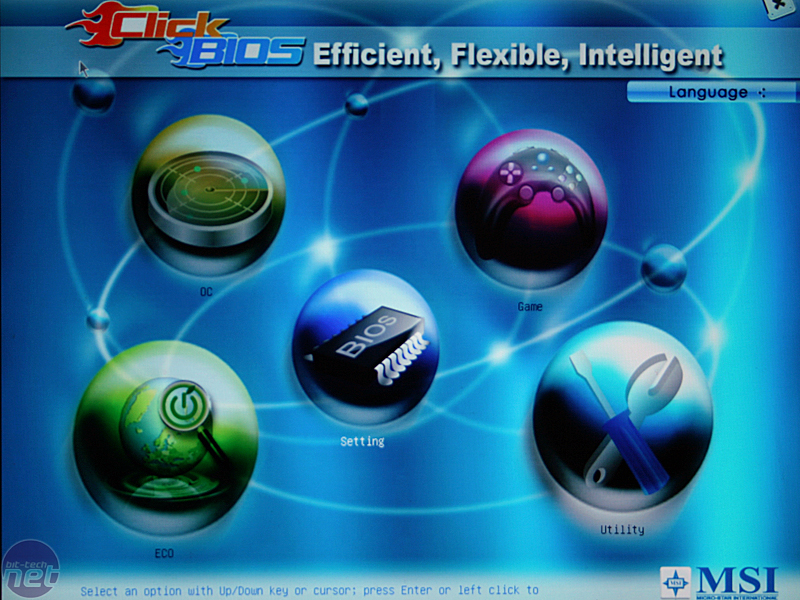
As its name implies, MSI Click BIOS allows the use of a mouse instead of a keyboard. However, it's a poor design in my opinion; not only does it look unprofessional, but the fact that right-clicking takes you back (instead of, say, providing a "back" button) is not intuitive. (See Click BIOS for yourself here.)
Apple's Mac firmware
All Intel-based Macs use EFI instead of a BIOS; however, this EFI does its job in the background and is rarely seen by users. The only visible part is the boot manager that allows you to select Windows or Mac OS when dual-booting both systems on a Mac; there is no setup utility.
So what's NookkinEFI?
Much like the NookkinPhone concept, NookkinEFI is a conceptual EFI implementation which includes a boot loader and various configuration settings. (It's called "NookkinEFI" for lack of a better name.)
Some Features Of NookkinEFI
Here are the key features of NookkinEFI:
- Graphical "launchpad" combining an advanced boot loader and a list of boot devices
- Mouse-based (but keyboard-compatible) navigation
- Support for a wide range of devices, including Bluetooth keyboards and mice
- "New Operating System Wizard", which allows the user to add an operating system entry to the boot loader for multi-booting
- Native EFI and BIOS Emulation modes, selectable for each operating system.
- Application support, including basic pre-OS web access and remote system management
- Easily reconfigurable boot order, and intuitive prompting upon the insertion of a new boot device.
- 5 system startup modes (covered in Part 2), which include graphical and text modes for compatibility purposes
- NookkinEFI resides on a flash chip on the motherboard, which can be easily updated
- Advanced configuration can be performed by editing XML configuration files
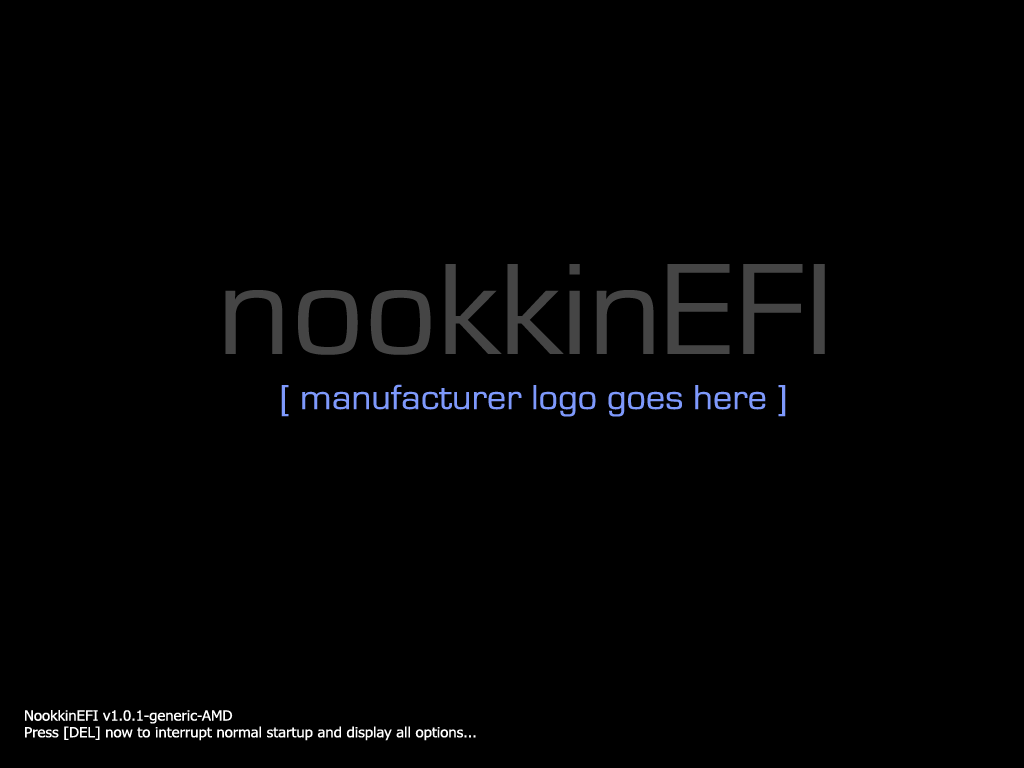
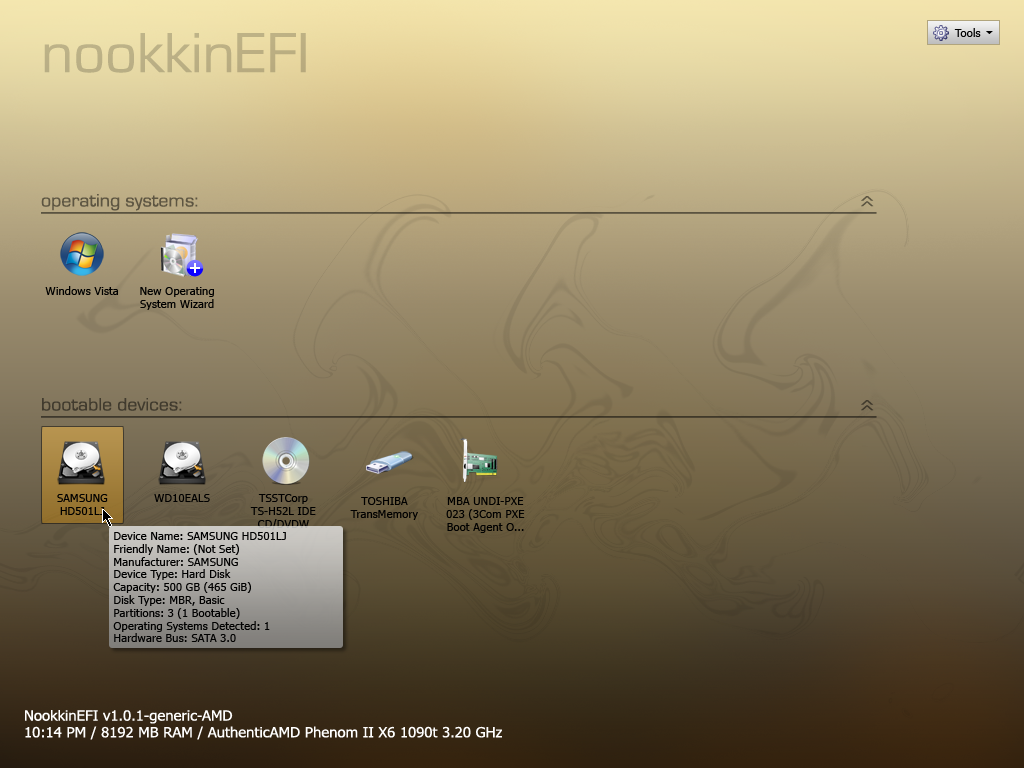
I designed some mockups in Photoshop. They resemble Ubuntu's default theme, but this was not intentional; NookkinEFI has nothing to do with Ubuntu or Linux.
Initial Boot Screen
Nothing much to see here. The above image is a "placeholder" boot screen; in reality, the logo would be replaced by the system or motherboard manufacturer's logo. As per the text in the lower left-hand corner, pressing the DEL key will open the launchpad.
Launchpad
This is the "heart" of NookkinEFI; the Launchpad is accessible by pressing a specified key at startup, or can be configured to always appear. Here, users will be able to choose preconfigured operating systems and devices to boot from (including hard drives, CD-ROMs, USB drives, option ROMs, etc.) Additionally, more tools (such as a setup utility and disk utility) will be provided via the Tools menu; more on this in Part 2.
Boot Device Selection on Startup
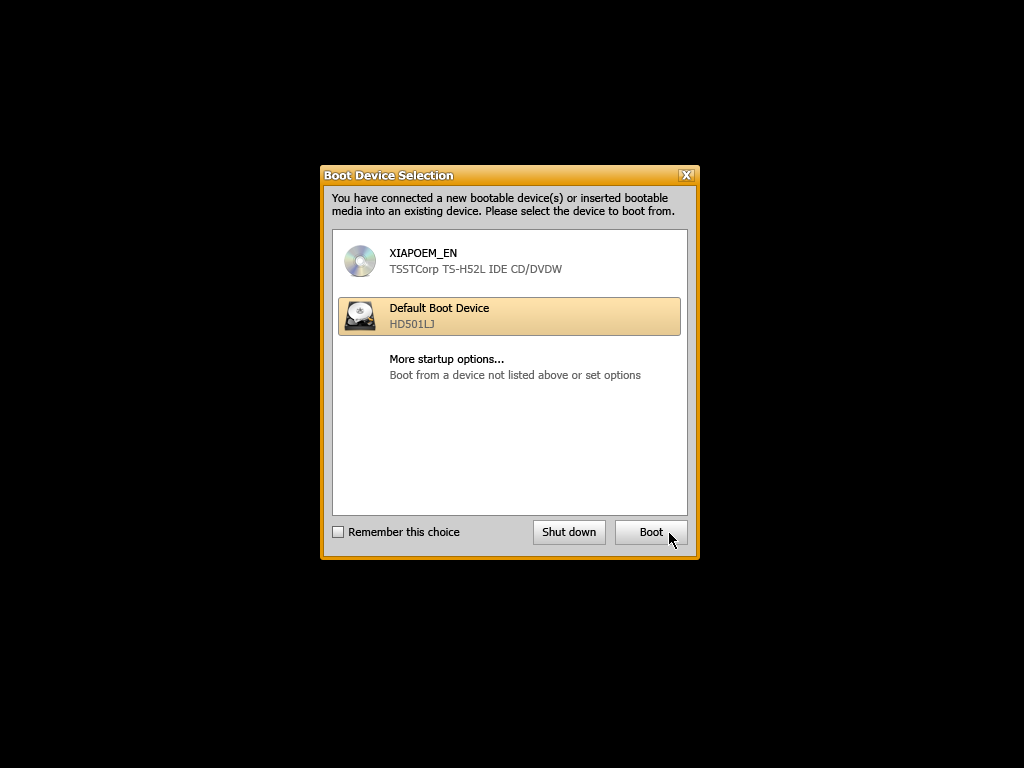
This dialog will appear at boot whenever a new bootable device (or removable media) is inserted; of course, it will be possible to disable this if you wish.
Please leave any comments below.
![[XML]](/images/xml.png)
Comments (0)
Leave a comment